Help centre
Practical answers for everyone helping to run a Parent Carer Forum. Search for what you need, or email us if you'd rather talk it through.
Need a hand?
You'll hear from a real person who understands Parent Carer Forums. If an answer is unclear, or we haven't covered your question, please tell us. It helps us make this page more useful.
Email our teamAvailable weekdays during UK working hours
33 articles
Getting started
Claim your forum
Every Parent Carer Forum in England already has a listing, even if it is not using Forum by Sendsorta yet. Claim your listing to turn it into a workspace for your forum.
To claim it, use the contact email address your forum already publishes. We will email you a sign-in link, so there is no approval process or password to set up.
- Find your forum in the directory.
- Enter the public contact email address shown for your forum.
- Open the sign-in link we email you.
- Your workspace is ready. You will start as Chair and can invite the rest of your team.
What to do in your first two weeks
For your first two weeks, aim to publish one useful update for members. It gives people an immediate reason to visit, and it settles the platform into how your forum already works.
You do not need to move everything at once. Start with one piece of work that is already under way.
- Invite a second administrator so one person is not responsible for everything.
- Create a working group for something you are already working on.
- Add your current actions, including who owns each one and when it is due.
- Record the latest promises from your council or health partners, including any dates.
- Publish an update so members can see where the work is up to and when they will hear more.
Invite your committee and set up roles
Set up roles to match the way your forum works. You can start with a template such as Chair, Treasurer or Data Protection Lead, then rename it and change its permissions to fit your constitution.
A role controls what someone can do. Seniority is a separate matter. A Treasurer can manage finances while confidential member records stay closed to them, and the technical administrator can be somebody other than the Chair.
If someone is helping with just one project, invite them as an external contributor. They will only see the working group they need.
When you hand out work, the lists of action owners, workstream leads and group members show people who hold an office in your forum, meaning any role other than General Member. Give somebody a role here and they appear in those lists straight away.
People who join by following an invitation link start under the part of their email address before the @, such as "jane.smith", until they choose a name in the app. Choose the pencil beside somebody's name in People to correct it for them, and your forum's audit trail records the change.
Working groups
What is a working group?
A working group is a workspace for one piece of your forum's work. Your committee agrees to do something about school transport, and that becomes a working group, and everything to do with transport goes inside it.
That means the people doing the work, the jobs they have taken on, what they have decided, their meetings, the documents they are using and the evidence families have given them. It is all in one place, so when somebody new joins, or the person who ran it steps down, the work carries on and its history comes with it.
Most forums have three or four on the go. Each one keeps itself to itself, so if you are in the transport group, transport is what you see.
Starting one takes a name and a sentence about why it exists. You fill in the rest as you go, and the easiest first group is usually something your forum is already busy with this week.
How do I create a working group?
You will find working groups in the Operations Hub, which is the part of Forum your committee works in. Open Groups from the main menu, then choose New working group.
Two boxes are all you have to fill in: the name and the purpose. The rest can wait, so you can have a group up and running in a minute and come back to the detail after its first meeting.
Give the purpose a proper sentence, though. It is the first thing somebody reads when they want to know what you are all doing.
Creating groups comes with its own permission, and so does leading one. Chairs, steering committee members and parent representatives can lead a group from the start, so the Lead list shows the people whose role allows it, and a chair can give that permission to other roles in Settings.
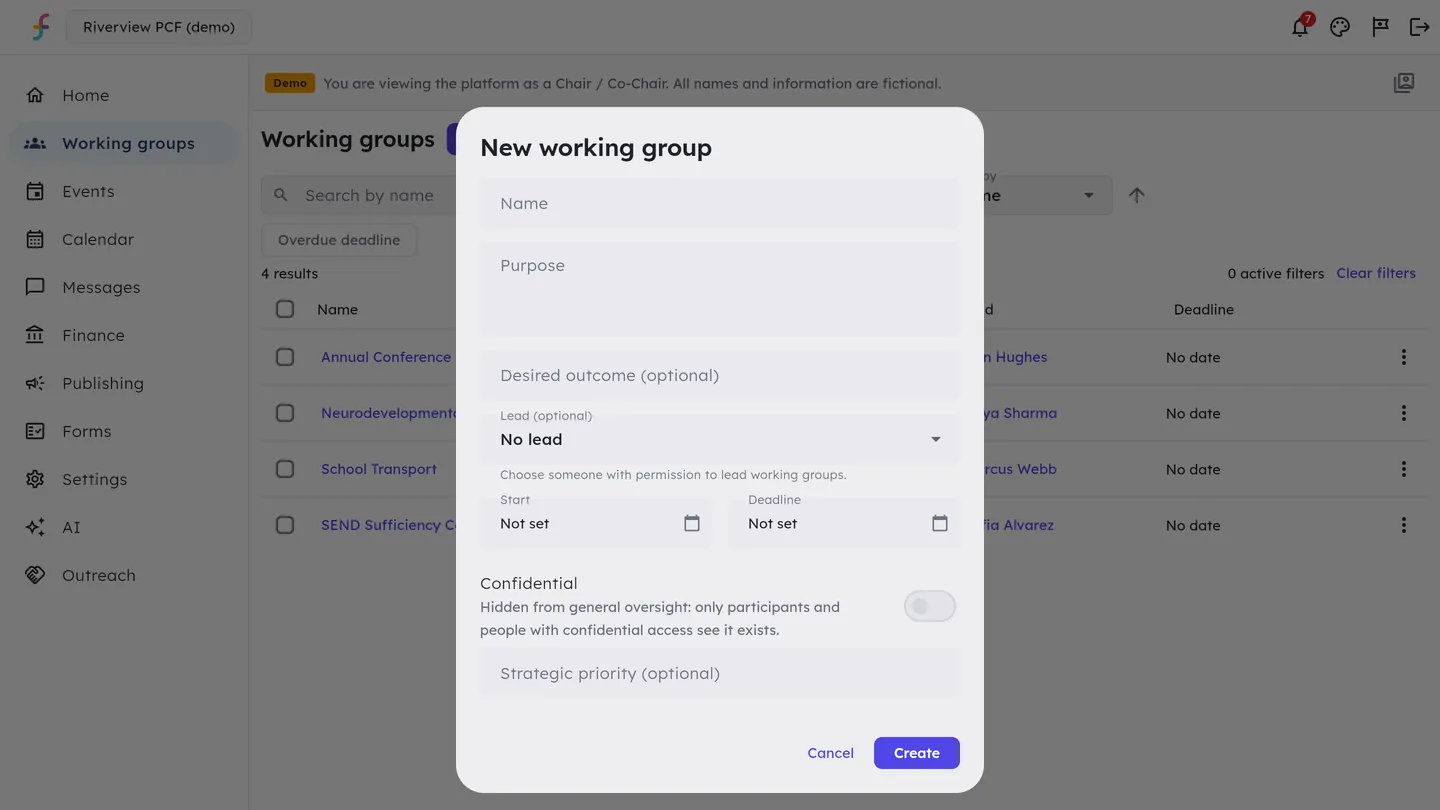
- Open Groups from the main menu.
- Choose New working group.
- Name it something your whole committee would recognise, like Short Breaks Review.
- Say why it exists, in a sentence or two. That is the purpose.
- Add the outcome you are after, if you know it already.
- Pick a lead, and put in a start date and a deadline if the work has them.
- Note the forum priority it serves, if you plan that way.
- Choose Create, and the group is there waiting for people and jobs.
How do I find my way around the list?
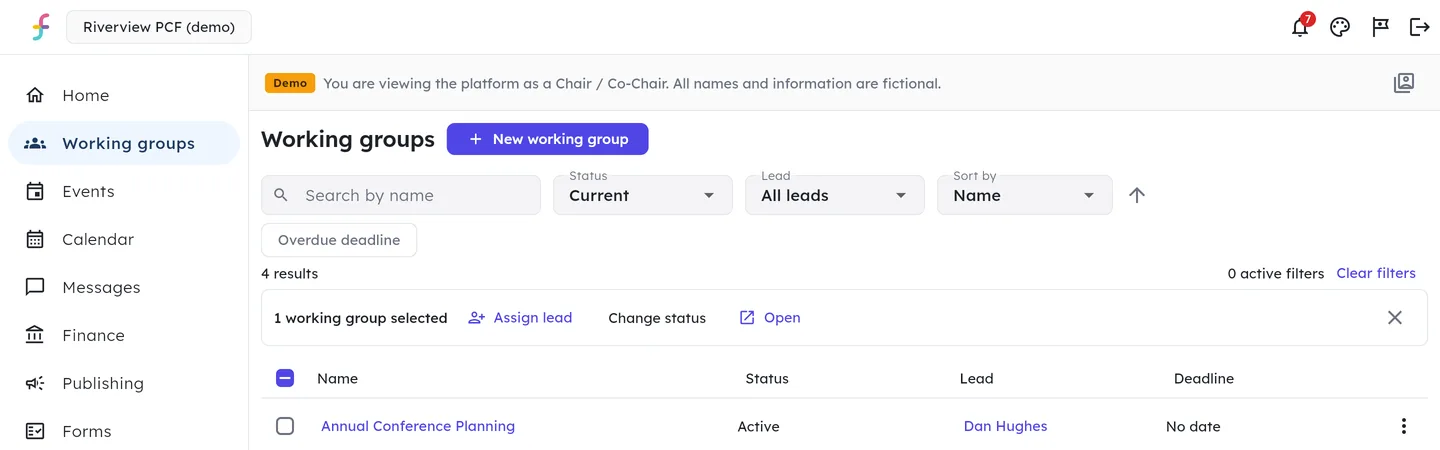
Groups opens on a list of the groups that are running. On a computer it is a table giving each group's name, status, lead and deadline, and on a phone each group becomes a row that grows to fit its text.
Search by name, filter by status or lead, or choose Overdue deadline to see the groups running late. Sort by name, status or lead in either direction. The Hub remembers your choices while you work, so coming back from a group returns you to the same view.
Tick the box beside a group to select it, or choose Select all matching to take every group your filters show. Change status then updates them all at once, and Assign lead gives them all the same lead. The result tells you which changed, which already had that status and which could not be changed, keeping those selected so you can try again.
Archived groups stay out of the way at first. Set the status filter to All statuses to see them, and everything they hold is still readable, so you can look something up a year later when a funder asks.
A group marked Confidential shows to the people in it and to anybody your forum trusts with confidential access.
What is inside a group?
Open a group and it starts on its Overview, which tells you what is happening, what needs attention and what happened lately. A path at the top, such as Groups, then School Transport, then Meetings, shows where you are, and choosing any part of it takes you back there.
The Actions and Decisions & commitments buttons at the top open the group's full lists of jobs, decisions and partner promises. Below them come counts of active workstreams, partner responses you are waiting on, outstanding actions and upcoming meetings, and suggested next steps, such as following up a partner whose reply is due, which you can put away once they are dealt with.
Requires attention lists anything overdue or stuck, Current work lists each workstream with its lead and next step, and Recent activity shows what the group has done lately. Group tools holds the AI summary and the AI member update.
On a computer the sections run as tabs across the top. On a phone a Group section picker takes their place.
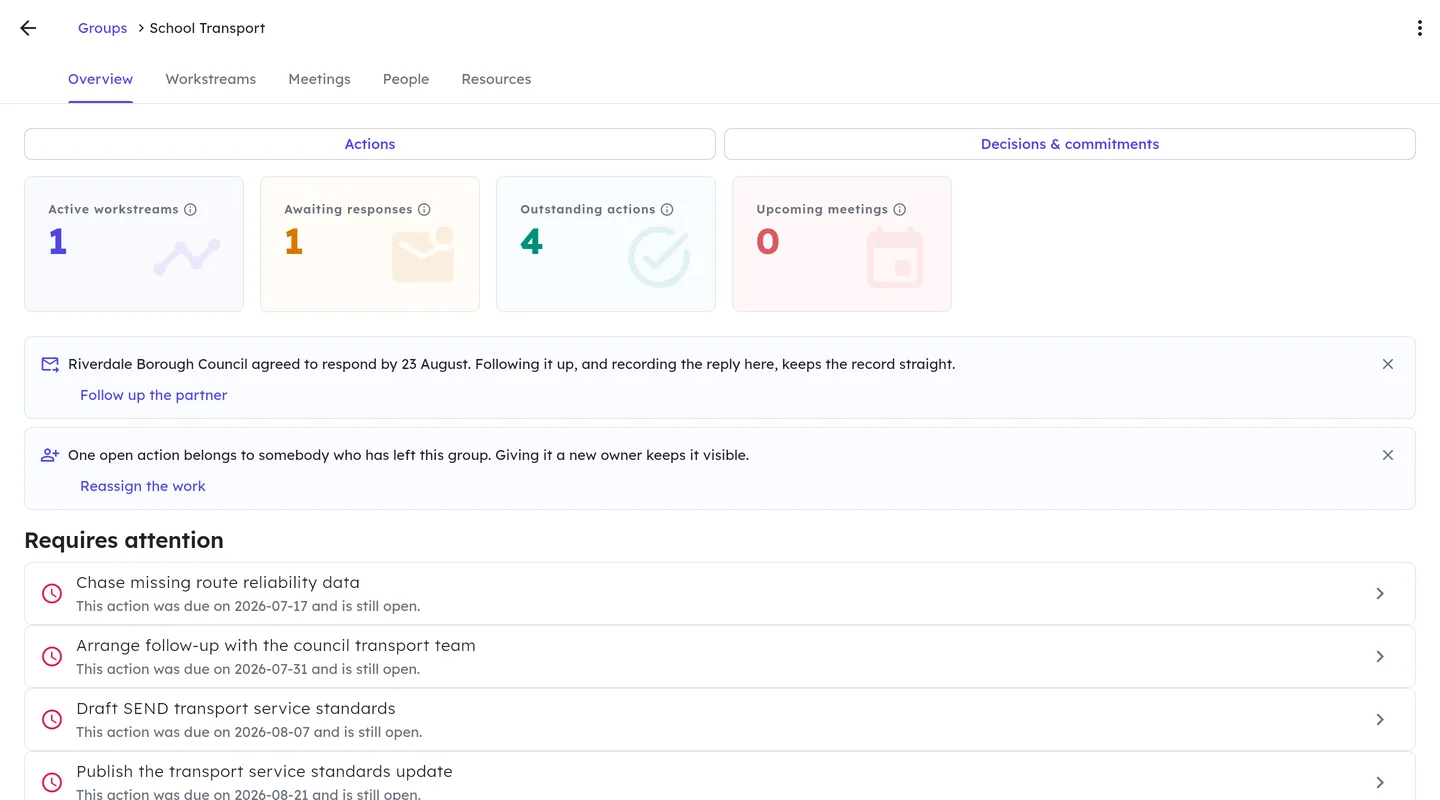
- Overview shows where the work stands and leads to the group's actions, decisions and partner promises.
- Workstreams follows each piece of work from what families told you to the change it produced.
- Meetings keeps each agenda, the people who came and what was agreed, and you can add an action, a decision or a commitment from an agenda item.
- People shows who is in the group, including anybody you invited from outside your forum.
- Resources gathers the group's documents and the forms it has sent to members.
How do I add people to a group?
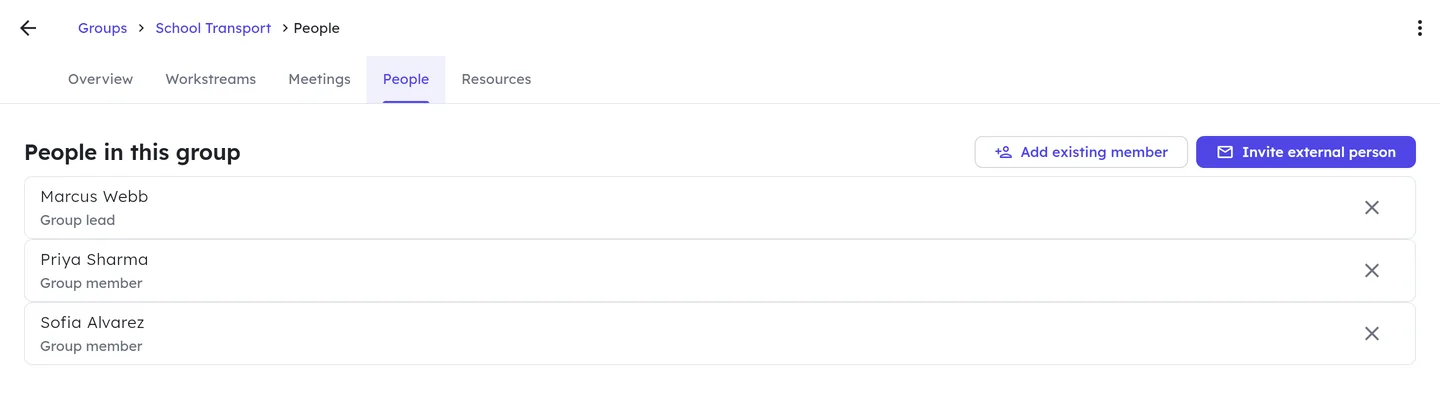
The People tab is the group's address book. It shows you who is in, and it is where you bring somebody in or take them out.
For somebody already in your forum, choose Add existing member, pick their name, then pick the access role they will have in this group. The list offers people who hold an office in your forum, meaning any role other than General Member, so give somebody a role in Settings first if they are missing. Roles work group by group, so the same person can lead your transport group and simply lend a hand in the conference group.
For somebody outside your forum, such as a council officer or a specialist helping you for a term, choose Invite external person. You give their email address, pick their access role, and say how long the invitation stays open, anywhere from a day to a month. They get an email, and once they accept they appear in this list like everybody else.
People invited from outside see the group you invited them to. The rest of your forum's work stays where it was.
How do I give out and finish actions?
An action is a job with an owner and a due date. Add one from the group's Actions list, from a meeting's agenda item or from a workstream, and it carries the place it came from, so the meeting, the workstream and the owner's own list all show it.
Actions go to people who hold an office in your forum, meaning any role other than General Member. Somebody who already owns an action keeps it if their role changes, and you can hand it to somebody else whenever you like.
When a job is finished, its owner or a manager chooses Mark done from the menu beside it. A message confirms it with an Undo button for ten seconds, in case it was the wrong one, and the counts and the workstream's history update straight away.
Where do I see everything that needs doing?
Actions sit inside the group they belong to, so Actions in the main menu gathers them into one board. Every job you are allowed to see is there, from every group, in columns: Open, In progress, Blocked and Done.
Drag a card from one column to another to move the work along. Dropping a card on Done finishes it, and a message gives you ten seconds to undo that if it was the wrong one. On a phone the columns scroll sideways, and holding a card picks it up.
Each card names its group, the person who holds it and the date it is due. Choose the owner to hand it to somebody else, or the date to change it, and the change is saved where you stand. Every card also carries a menu that makes the same changes, so you can work through the whole board from there.
Filters across the top narrow the board to one group, to one person, to your own work, or to whatever has run late. Done shows the last month of finished work, with a way to read further back. Cancelled work arrives when you ask for it.
Start an action in the group, the meeting or the piece of work it belongs to, so it keeps the context that tells everybody why it exists. The board is where you move it along afterwards.
How does parent feedback turn into a change?
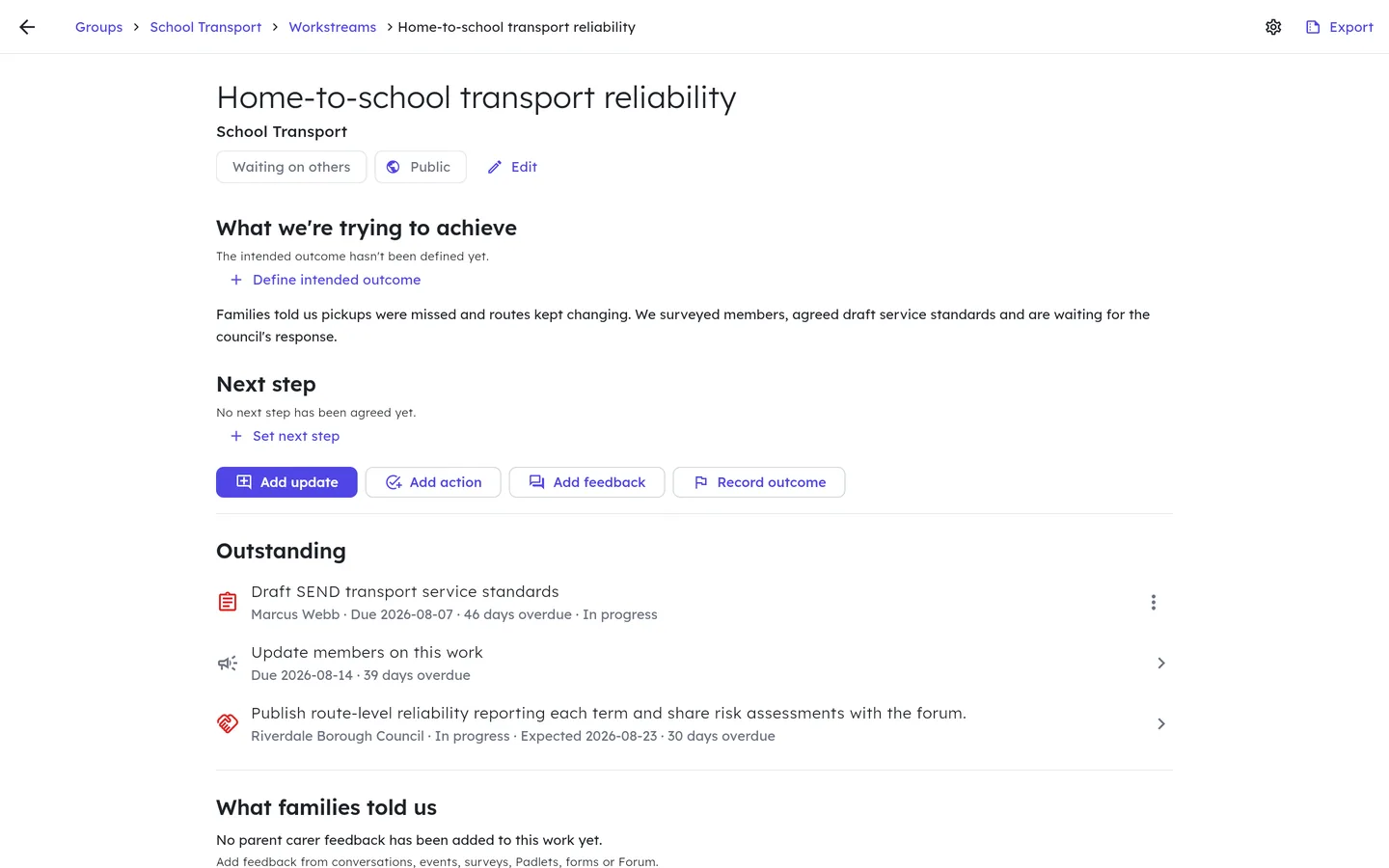
A workstream is the thread tying what families told you to what changed because of it, and you will find it in the Workstreams tab of whichever group is doing that work.
Every workstream has a status: Exploring, In progress, Waiting on others, Reviewing impact or Closed. Any status can follow any other, because a piece of work sometimes needs another go.
Open one and it reads as a story. The top gives its status and who can see it, then what you are trying to achieve and the next step, with buttons to add an update, an action or feedback and to record an outcome. Below them come Outstanding, which lists every open job, awaited promise and date in date order, then What families told us, Discussed at, Partner commitments and What's happened. Outcome follows once you have recorded what changed for families.
The settings icon beside Export holds the workstream's name, who can see it, the date of the next member update and its topics. A change to who can see it goes through publishing approval. Export turns the whole thread into a report you can hand a funder or take to a partnership board.
Because the story is recorded as you go, members can see how far a piece of work has got, and you can show anybody who asks how a worry raised around a kitchen table ended up changing a service.
How do I pause, finish or archive a group?
A group is always in one of four states. Active means it is under way, Paused means it is resting while you wait on something, Completed means the work is done, and Archived files it away. Change it from the menu in the top right of the group's own screen, or select several groups in the list and choose Change status.
Archiving checks with you first. Everything travels with the group, so the jobs, the decisions, the meetings, the documents and the evidence are all still there to read.
Archiving has a permission of its own, separate from being able to edit a group, so your forum can let several people run a group while the decision to close it stays with the chair.
A group can always come back. Find it with the status filter and mark it active again.
What does confidential mean?
Some work needs a smaller audience: a complaint, something about a member of staff, one family's own case. Switch a group to confidential, either as you create it or later through Edit, and it shows to the people in it and to anybody your forum trusts with confidential access.
A confidential group is marked Confidential wherever it appears, so everybody who can see it knows to treat it that way.
The setting covers what is inside the group as well as the group itself, so a confidential decision stays with the people entitled to read it.
What do the AI tools in a group do?
Group tools, on a group's Overview, holds two AI tools: the AI summary of the group and the AI member update. Both of them write a first draft for a person to check.
The AI summary is worth a look whatever your forum has decided about AI, because the platform does the counting itself. How many jobs are open, done, late or stuck, how many decisions are approved, how many partner promises are still outstanding: those numbers come from your own records, and each one is listed with the job, decision or meeting behind it.
Once your forum switches AI on in its settings, a short piece of writing joins those numbers, under a heading reminding you to read it before you share it. With AI switched off you keep the numbers and the records, and the summary tells you so plainly.
The writing keeps itself fresh. When the last summary is more than 15 minutes old, a small spinning circle appears beside it while a new one is written, and the new one replaces it a few seconds later.
The AI member update takes the decisions the group has approved, the jobs it has finished and the outcomes it has recorded, and drafts an update written for members. It arrives as a draft in the usual review queue, so a named person approves it before a single member sees it.
Outreach
What is Outreach?
Outreach keeps your forum's relationships with schools, health services, charities and community groups in one place, so the whole committee knows who you know, who looks after each relationship and what happens next.
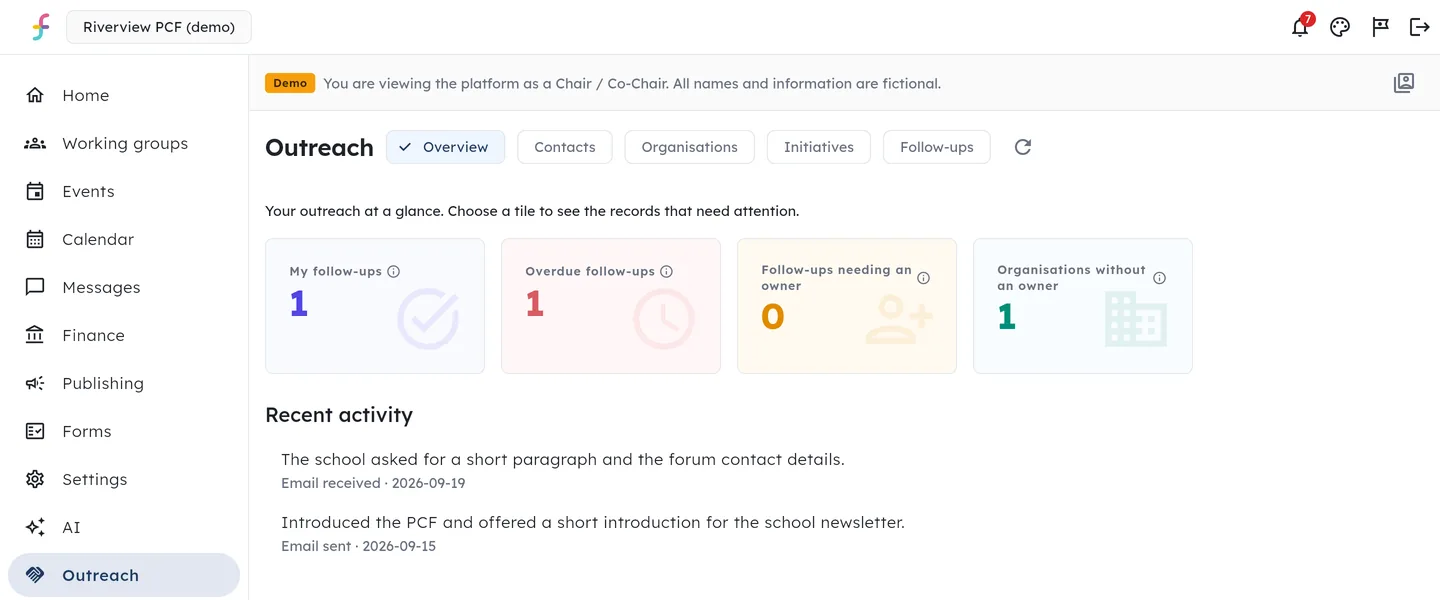
Open Outreach from the main menu. The Overview shows tiles for your own follow-ups, overdue follow-ups, follow-ups needing an owner and organisations without an owner, and each tile opens the list behind it. Contacts, Organisations, Initiatives and Follow-ups sit alongside it.
An organisation needs only a name to start. Add as many contacts to it as you like, including a shared inbox, and each one stays a contact of your forum, separate from its membership.
Chairs and steering committee members have Outreach from the start. A chair can give other roles permission to view it, manage it or export it in Settings.
How do I record contact and plan the next step?
Open an organisation and choose Record activity. Say whether it was an email, a call, a meeting, a visit or a note, when it happened and what was said, and add the next follow-up in the same form with an owner and a date.
Follow-ups are actions, so they appear in the owner's list on the Hub dashboard as well as in Outreach, and the owner gets a reminder in the Hub when one falls due.
Every organisation has a relationship owner. Select organisations or contacts and choose Assign owner to give them all to one colleague at once, and that person looks after the relationship for each organisation's contacts.
Initiatives group organisations around one purpose, such as a round of visits to secondary schools. Each organisation keeps its own progress within an initiative, so the same organisation can take part in several.
How are outreach contacts looked after?
Outreach is for professional contact details. Keep family case histories and sensitive personal information out of its notes.
Mark an organisation or a contact Do not contact and it stays out of new follow-ups. Archiving keeps its history and can be reversed.
Import contacts from a spreadsheet by downloading the template, uploading your file and matching its columns, and you check a preview before anything is saved. Exporting needs its own permission and is recorded in the audit trail.
Outreach contact details stay inside the Hub, apart from member pages, notification text and the AI assistant, and Data protection in Settings can find, export or erase a contact on request.
Your role
If you are the Chair
Your home screen gives you a quick view of how things are going. You can see overdue actions, decisions waiting for you, your budget position and upcoming reporting deadlines in one place.
Keep partner promises up to date, including who made each promise and when it is due. If a deadline passes, the commitment will be brought back to your attention instead of getting lost.
Anything published to members needs approval first. You can approve it yourself or give that responsibility to someone else.
If you are the Treasurer
You can manage several grants at the same time. Each grant keeps its own budget headings, reporting deadlines and spending rules.
You can split an expense across grants, attach receipts and ask more than one person to approve it. Data exports for funder reports need the right permission and are added to the audit trail.
Finance access is separate from access to member data. Being able to manage money does not automatically give you access to members' contact details or diagnoses.
If you are a Parent Representative
You will see the boards and service areas you represent, along with the parent feedback linked to them. You will not see the forum's other internal work unless you need access to it.
Before a meeting, use the briefing papers and parent feedback summary to prepare. Afterwards, record what was discussed and any promises that were made, including who is responsible and when each one is due.
This creates a clear record you can return to months later, so important promises do not get forgotten.
If you look after data protection
Consent is saved as a separate, dated record. It is never assumed just because someone joins or completes a form.
You can respond to a subject access request, record a data breach and apply retention rules from the platform. You do not need access to confidential discussions or finances to do this.
The audit trail records who did what and when. Existing entries cannot be edited or removed.
Members and feedback
Send a form and see who has replied
Create a form, share it with members and see who has opened or completed it. You can also send reminders from the same place.
If you make a form anonymous, it stays anonymous after it opens. You can still see who has not replied because the invitation list is kept separate from the answers.
When you want to analyse the answers elsewhere, export them to a spreadsheet.
Publish news, events and progress
Before an internal update goes to members, someone with the right permission must approve it.
Members will see where the work is up to in clear language, from listening to feedback through to delivering a change. They will also see the date of your next update.
The AI drafting tool can help turn an internal update into a clear version for members. A named person always reviews it before it is published.
How a member changes the name they show under
A member's name appears beside their messages, their replies and anything they offer to help with, so it is worth having it read the way they would write it themselves.
Somebody who joins by following the link in an invitation, or by asking to join, starts under the part of their email address before the @, so "jane.smith@example.org" reads as "jane.smith". The app asks them for their name on the Membership tab as soon as they arrive, and they can change it there at any time afterwards.
You can also correct a name yourself. Open Settings, then People, and choose the pencil beside the name. The member keeps the ability to change it in their app, and your forum's audit trail records that you made the change.
What members see
Members get one place for local news, events, open consultations and updates on the forum's work.
They choose the topics they care about, so they only receive relevant updates.
Membership is free for parent carers and always will be. Your forum pays for its members through one subscription.
Money and admin
How billing works
We invoice your forum once a year. You pay by bank transfer using a purchase order. We do not take card payments or store card details.
Your band follows the number of people who hold a membership of your forum, from parent carers to the team that runs it. Prices exclude VAT, and a year paid annually costs ten months of the monthly rate.
Where an invoice goes unpaid we will talk to you first, and we may suspend the forum so that it stops accepting new members. Your records stay readable and exportable throughout, and we keep them whatever is owed.
Paying for it from your participation grant
You may be able to pay for Forum from your Parent Carer Participation Grant as a participation or administration cost. Check your grant conditions, or ask your adviser at Contact if you are unsure.
We can also give you a short summary to share with your committee or include with your grant report.
Exporting your data, or leaving
You can export your data at any time while your subscription is active. It belongs to your forum.
If you decide to leave, you can ask us for an export for up to 30 days after your agreement ends. After that, we delete the remaining data.
Data and privacy
How your forum's data is kept separate
Each forum's records are kept separate. This separation is built into the database, helping to prevent one forum from accessing another forum's data.
Files are kept in private storage and opened through links that expire. Exports need a specific permission and are recorded in the audit trail.
Your forum is the data controller and we are the data processor for information in your workspace. You can review our data processing agreement before uploading any real information.
Records are about the parent carer
Membership records describe the parent carer. Every field the platform asks for belongs to them, so a child's name, date of birth, school, EHCP details and diagnosis stay outside the platform entirely.
If you collect demographic information for funder reports, it is linked to an anonymous key and reported only as totals. Small numbers are hidden to reduce the chance of anyone being identified.
Please remind members to keep free-text answers free of details that could identify a child.
How the AI features work
AI features are off until your forum chooses to turn them on. They can draft and suggest, but they cannot approve spending, assign roles, publish or delete anything.
Member contact details and special category information are not included in AI requests. A named person reviews every suggestion before it is used.
We never use your data to train an AI model.
The demo
What the demo is
The demo lets you explore the real product using a fictional forum called Riverview. You can look through working groups, finances, publishing, forms and messages instead of watching a video or slideshow.
Everything in the demo is made up. It does not include any real forum, person or budget.
The demo is read-only, so you cannot change or damage anything. Feel free to explore and click around.
Which role to explore first
Choose a role to start exploring straight away. You can switch roles at any time without leaving the demo.
If you are deciding whether Forum is right for your forum, start as Chair for the broadest view. Then switch to Member to see what parent carers will experience.
- Chair: see the whole forum, including governance, finances and approvals.
- Steering Committee: see strategic work, assigned actions and funding oversight.
- Parent Representative: see one service area, its evidence and its commitments.
- Member: see the app as a parent carer would.
Still can't find what you need?
Email info@sendsorta.co.uk and tell us what you are trying to do. We'll point you in the right direction. If you haven't set up your forum yet, you can find your forum or explore the demo without creating an account.
Answering a committee about the money is its own job, so it has its own page: accounting and finance questions covers how invoicing works, what the price follows, what happens to your records, and who you are contracting with.
For how we handle information, see our privacy policy and terms.